QR Code Generator & Reader: Complete Guide (2026)
Everything you need to know about QR codes: how they work, how to create and scan them online for free, best practices, and real-world use cases.
What is a QR Code?
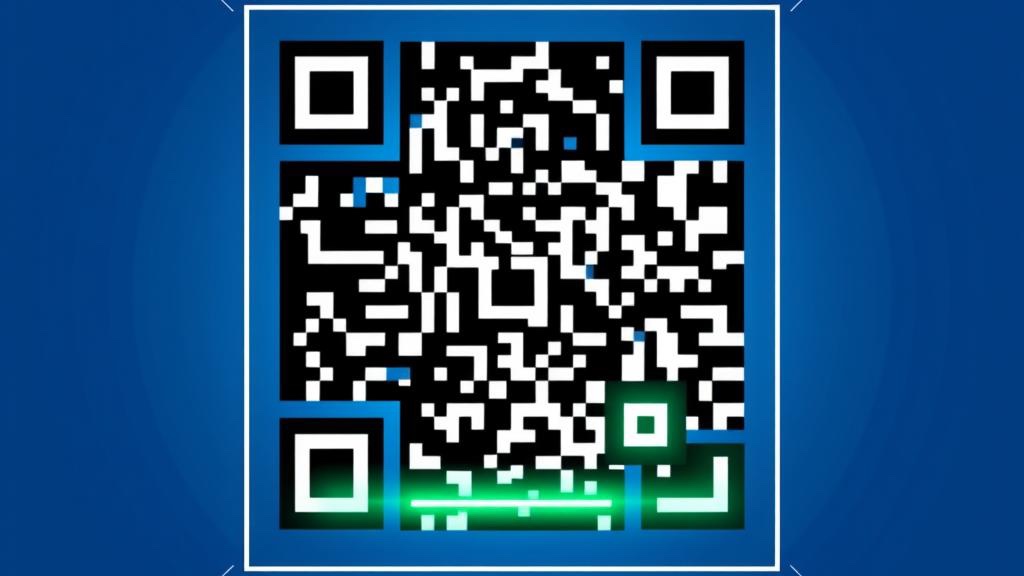
A QR code (Quick Response code) is a two-dimensional barcode that stores information in a grid of black and white squares. Unlike traditional one-dimensional barcodes that can hold only 20–25 characters, a QR code can encode up to 7,089 numeric characters or 4,296 alphanumeric characters. Any smartphone camera or QR reader app can decode the information instantly.
QR codes were invented in 1994 by Masahiro Hara at Denso Wave, a Toyota subsidiary, to track automotive parts during manufacturing. Today they are ubiquitous — on restaurant menus, boarding passes, product packaging, business cards, and marketing materials worldwide.
How QR Codes Work
A QR code is not just a pattern of black dots. It has a precise structure that makes it machine-readable from any angle:
Key Structural Elements
- Finder patterns: The three square targets in the corners (top-left, top-right, bottom-left) allow a scanner to locate and orient the code regardless of angle or rotation.
- Alignment patterns: Smaller squares inside larger codes that help correct for image distortion or curvature.
- Timing patterns: Alternating black and white modules between finder patterns that define the grid coordinate system.
- Data area: The remaining modules store the encoded data, interleaved with error correction codewords.
- Quiet zone: A white border around the entire code (minimum 4 modules wide) that separates the code from surrounding content.
Error Correction
One of QR codes' most powerful features is built-in error correction. Even if part of the code is damaged, dirty, or obscured by a logo, the data can still be read. There are four error correction levels:
- Level L (Low): Recovers up to 7% of data. Best for clean environments where maximum data density is needed.
- Level M (Medium): Recovers up to 15% of data. The most common choice for general use.
- Level Q (Quartile): Recovers up to 25% of data. Good for industrial environments.
- Level H (High): Recovers up to 30% of data. Required when embedding a logo in the center of the QR code.
Types of QR Codes
Not all QR codes are the same. Understanding the differences helps you choose the right type for your use case:
Static QR Codes
The data is permanently encoded into the pattern. Once generated, the destination cannot be changed. Static QR codes are ideal for:
- WiFi network credentials (SSID and password)
- Contact information (vCard)
- Fixed website URLs that will never change
- Printed materials with permanent information
Static QR codes are free to generate and have no ongoing costs. Our QR Code Generator creates static codes entirely in your browser.
Dynamic QR Codes
Dynamic QR codes actually encode a short redirect URL. The final destination can be changed at any time from a dashboard, without reprinting the code. They are used by marketing teams for campaigns, event tickets, and product packaging where the target content may change. Dynamic codes typically require a paid service.
QR Code Data Types
A QR code can encode many types of structured data, each recognized by scanner apps:
- URL: Opens a website directly. The most common type.
- WiFi: Automatically connects to a network. Format:
WIFI:S:NetworkName;T:WPA;P:Password;; - Email: Opens an email compose window with pre-filled recipient, subject, and body.
- Phone: Initiates a phone call when scanned.
- SMS: Opens a text message with a pre-filled recipient and message.
- vCard: Saves contact information directly to the phone's address book.
- Plain text: Displays any text content.
- Location: Opens a map at specific GPS coordinates.
How to Create a QR Code Online
Our free QR Code Generator requires no registration and runs entirely in your browser. Here is how to use it:
- Choose your data type: Select URL, WiFi, text, email, phone, or another format from the tabs at the top of the tool.
- Enter your content: Type or paste the information you want to encode — a website URL, WiFi credentials, contact details, etc.
- Customise the appearance: Choose the foreground and background colours, select a size, and optionally add a logo to the centre.
- Select error correction level: Use Level M for most cases. Use Level H if you are adding a logo.
- Generate and download: Click "Generate QR Code" and download the result as PNG or SVG. SVG is recommended for print — it scales to any size without losing quality.
How to Scan and Read QR Codes
Scanning QR codes has never been easier. Most modern smartphones scan QR codes directly from the default camera app — no additional software needed:
- iPhone (iOS 11+): Open the Camera app, point at the QR code, and tap the notification banner that appears.
- Android (8.0+): Open the Camera app or Google Lens. Most Android phones show a QR code prompt automatically.
- Online QR code reader: Upload an image of a QR code to our QR Code Reader tool to decode it directly in your browser — no app needed.
Our online QR Code Reader tool is especially useful for:
- Decoding QR codes from screenshots or photos on your computer
- Verifying that a generated QR code contains the correct data before printing
- Reading QR codes from PDFs, presentations, or product images
QR Code Use Cases
QR codes have become essential in many industries. Here are the most effective real-world applications:
Business & Marketing
- Business cards: Encode your contact details as a vCard so recipients can save your number instantly.
- Menus: Restaurants use QR codes to offer digital menus — customers scan the table code instead of touching a shared menu.
- Product packaging: Link to tutorials, ingredient details, or promotional pages directly from the box.
- Event check-in: Attendees show a QR code ticket that staff scan at the entrance.
Developer & Technical
- WiFi sharing: Print a QR code at home or in an office so guests can connect without typing the password.
- App deep linking: Send users directly to a specific screen inside a mobile app.
- Two-factor authentication: TOTP authenticator apps use QR codes to transfer the shared secret securely during 2FA setup.
- IoT device provisioning: Configure smart devices by scanning a QR code that contains network settings.
Education & Healthcare
- Classroom resources: Link printed worksheets to online videos, quizzes, or supplementary materials.
- Prescription labels: Encode dosage instructions so patients can hear them read aloud via a linked website.
- Museum exhibits: Provide multilingual audio guides accessible by scanning a code next to each exhibit.
QR Code Best Practices
Follow these guidelines to ensure your QR codes work reliably in every situation:
- Minimum size: Print QR codes at a minimum of 2 × 2 cm (0.8 × 0.8 inches) for reliable scanning at arm's length. Larger is always better.
- Contrast: Use dark foreground on a light background. Avoid placing QR codes on busy photographic backgrounds. Ensure a contrast ratio of at least 4:1.
- Quiet zone: Keep a clear white margin around the code (minimum 4 modules). Avoid placing the code right at the edge of a page or label.
- Use SVG for print: Download QR codes as SVG files for print materials. SVG scales without pixelation, ensuring sharp codes at any print size.
- Short URLs: Shorter URLs produce less complex QR codes with fewer modules, making them easier to scan. Use a URL shortener for very long addresses.
- Test before printing: Always scan the final QR code from the actual printed material under realistic lighting conditions before a large print run.
- Mobile-optimised landing pages: Since QR codes are scanned on mobile devices, ensure the linked page loads quickly and is fully responsive.
Common QR Code Mistakes to Avoid
- Too small to scan: QR codes printed below 1.5 cm often fail on older devices. When in doubt, go bigger.
- Low contrast colours: Pastel-on-white or dark-on-dark combinations confuse scanner apps. Stick to high-contrast colour pairs.
- Overlapping the quiet zone: Text, borders, or design elements touching the QR code prevent scanners from locating the finder patterns.
- Linking to non-mobile pages: A QR code that lands on a desktop-only website frustrates mobile users. Always check the target URL on a smartphone.
- No call to action: Always add a brief instruction near the code — "Scan to visit our menu" or "Scan for WiFi password" — so users know what to expect.
- Forgetting to test after printing: Gloss lamination, foil finishes, and certain paper types can reduce scan reliability. Test a printed sample before the full run.
QR Code vs Barcode: Key Differences
While traditional barcodes and QR codes serve similar purposes, they differ significantly in capacity and versatility:
- Data capacity: A standard barcode holds 20–25 characters. A QR code holds up to 7,089 characters.
- Reading direction: Barcodes are read in one direction (horizontal). QR codes are read in two dimensions and can be scanned at any angle.
- Data types: Barcodes typically encode numbers. QR codes handle URLs, text, binary data, and structured formats like vCard.
- Error correction: Traditional barcodes have no error correction. QR codes can recover up to 30% of damaged data.
- Required hardware: Barcodes need a dedicated laser scanner. QR codes work with any smartphone camera.
Create a QR Code for Free
Generate QR codes for URLs, WiFi, text, email, phone numbers, and more — instantly in your browser.
Scan & Decode QR Codes Online
Upload any QR code image and decode it instantly in your browser — no app needed.