How to Create ASCII Art from Images - Complete Guide
Learn everything about ASCII art: its history, how image-to-ASCII conversion works, character sets, and how to create stunning text art with our free online tool.
What is ASCII Art?
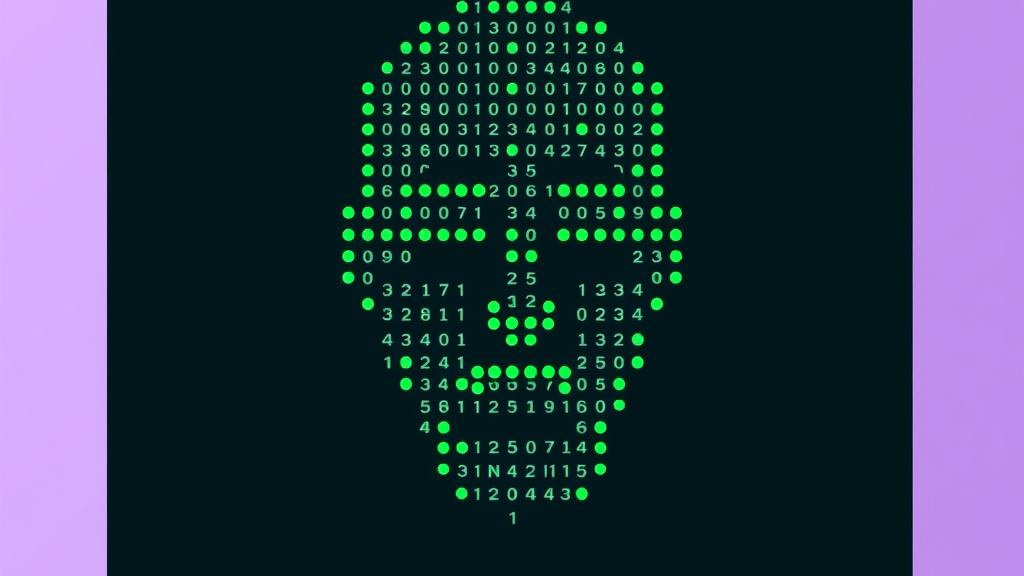
ASCII art is a graphic design technique that creates images using printable characters from the ASCII (American Standard Code for Information Interchange) standard. Instead of pixels, ASCII art uses letters, numbers, and symbols to compose visual representations of objects, scenes, and even photographs. The result is a unique aesthetic that blends typography with visual art.
The roots of ASCII art stretch back to the early days of computing in the 1960s and 1970s, when printers and terminals could only display text characters. Programmers and artists discovered they could arrange characters in creative patterns to produce recognizable images. Before graphical user interfaces existed, ASCII art was the primary way to share visual content in emails, bulletin board systems (BBS), and early internet forums.
Today, ASCII art has experienced a renaissance. Developers use it in README files on GitHub, system administrators display it in terminal welcome messages, and digital artists create intricate pieces that push the boundaries of what text characters can represent.
How Image-to-ASCII Conversion Works
Converting a photograph or digital image into ASCII art involves a fascinating process that maps visual brightness to text characters. Here is how it works step by step:
- Image scaling: The original image is resized to match the desired output width in characters. Each character cell in the output represents a small block of pixels from the source image.
- Grayscale conversion: Each pixel block is converted to a grayscale value, representing its brightness on a scale from 0 (black) to 255 (white).
- Character mapping: The grayscale value is mapped to a character from a predefined set. Darker values get denser characters (like @ or #), while lighter values get sparser characters (like . or a space).
- Output assembly: The mapped characters are assembled line by line to form the final ASCII art image.
The key insight is that different characters have different visual densities. The character @ fills more of its cell with ink than the character period (.), making @ appear darker. By carefully selecting which character represents each brightness level, the converter produces a text version that preserves the light and shadow of the original image.
Character Sets and Their Effects
The choice of character set dramatically affects the look and detail of your ASCII art. Here are the most common options:
Standard Character Set
Uses a basic set of about 10 characters arranged from dense to sparse:
@%#*+=-:. This set produces clean, readable output and works well for most images. It is the best starting point for beginners.
Detailed Character Set
Uses a wider range of characters for finer gradation between light and dark:
$@B%8&WM#*oahkbdpqwmZO0QLCJUYXzcvunxrjft/\|()1{}[]?-_+~<>i!lI;:,"^`'. With more characters to choose from, the converter can represent subtler differences in brightness. The result is more photographic but requires a monospace font to display correctly.
Block Characters
Uses Unicode block elements for a smoother, more pixel-like appearance:
█▇▆▅▄▃▂▁ Block characters produce output that looks closer to actual pixel art. They are ideal when you want a cleaner, less "noisy" look.
Step-by-Step Guide: Creating ASCII Art with Our Tool
Our free online ASCII Art Generator makes the entire process effortless. Follow these steps:
- Upload your image: Click the upload button or drag and drop any image file (JPG, PNG, GIF, WebP) into the tool. The image is processed entirely in your browser for complete privacy.
- Adjust the width: Set the output width in characters. A width of 80-120 characters works well for most purposes. Wider outputs capture more detail but require a larger display area.
- Choose a character set: Select from standard, detailed, or block character sets depending on the style you want.
- Select color mode: Choose between monochrome (classic ASCII look) or colored output (preserves the original image colors using ANSI color codes or HTML).
- Preview and adjust: The tool generates a live preview. Tweak the settings until you are satisfied with the result.
- Copy or download: Copy the ASCII art to your clipboard or download it as a text file. For colored versions, you can export as HTML.
The entire process happens client-side in your browser. Your images are never uploaded to any server, ensuring complete privacy and security.
Tips for the Best ASCII Art Results
Choosing the Right Width
The output width is the single most important setting. Here are some guidelines:
- 40-60 characters: Good for small displays, email signatures, or social media comments. Shows the general shape but lacks detail.
- 80-100 characters: The sweet spot for most uses. Fits in a standard terminal window and captures a good level of detail.
- 120-200 characters: High detail output for large displays or when you need fine details. Best viewed in a wide terminal or text editor.
Color vs. Monochrome
Monochrome ASCII art is the classic style that works everywhere, from plain text files to terminal windows. Colored ASCII art adds another dimension by preserving the hue of the original image, but it requires a terminal or viewer that supports ANSI colors or HTML rendering.
Choosing the Right Source Image
- High contrast images produce the most striking ASCII art. Think bold subjects against simple backgrounds.
- Simple compositions translate better than busy scenes with many small details.
- Well-lit subjects with clear shadows create depth in the ASCII output.
- Square or landscape orientations work better because characters are taller than they are wide, which stretches portrait images vertically.
Creative Uses for ASCII Art
README Files and Documentation
Adding ASCII art to your GitHub README file makes your project stand out. Many popular open-source projects use ASCII logos in their documentation. It adds personality and makes the project immediately recognizable in a terminal listing.
Terminal Welcome Messages
System administrators often use ASCII art in the Message of the Day (MOTD) displayed when users log into a server. It can show the server name, organization logo, or important notices in a visually appealing way.
Social Media and Messaging
ASCII art can be shared in places where images are not supported, such as code comments, plain text emails, or chat applications that do not render images. It adds visual flair to text-only environments.
Digital Art and Creative Projects
Artists use ASCII art as a medium for creative expression. From portraits to landscapes, the constraint of using only text characters inspires unique artistic approaches. Some artists create animated ASCII art that plays in terminal windows.
ASCII Art Best Practices
- Always use a monospace font: ASCII art only displays correctly in monospace (fixed-width) fonts like Courier New, Consolas, or Source Code Pro. Proportional fonts will distort the image.
- Consider the viewing context: A terminal window, a web page, and an email client all render text differently. Test your ASCII art in the environment where it will be displayed.
- Start with simple images: Begin with high-contrast logos or simple shapes before attempting complex photographs.
- Experiment with character sets: Different character sets produce vastly different results. Try several options to find the style that best suits your image.
- Adjust aspect ratio: Since characters are typically taller than wide, you may need to adjust the aspect ratio to prevent vertical stretching.
Try the ASCII Art Generator
Convert any image to ASCII art instantly with our free online tool. No sign-up required.