How to Compare Code Files Online: A Complete Guide to Code Diff
Every developer eventually faces the challenge of comparing two versions of a file. Whether you've been editing a config file and can't remember what changed, need to review a colleague's pull request, or are merging branches that have diverged, a code diff tool is the fastest path to clarity.
What Is a Code Diff?
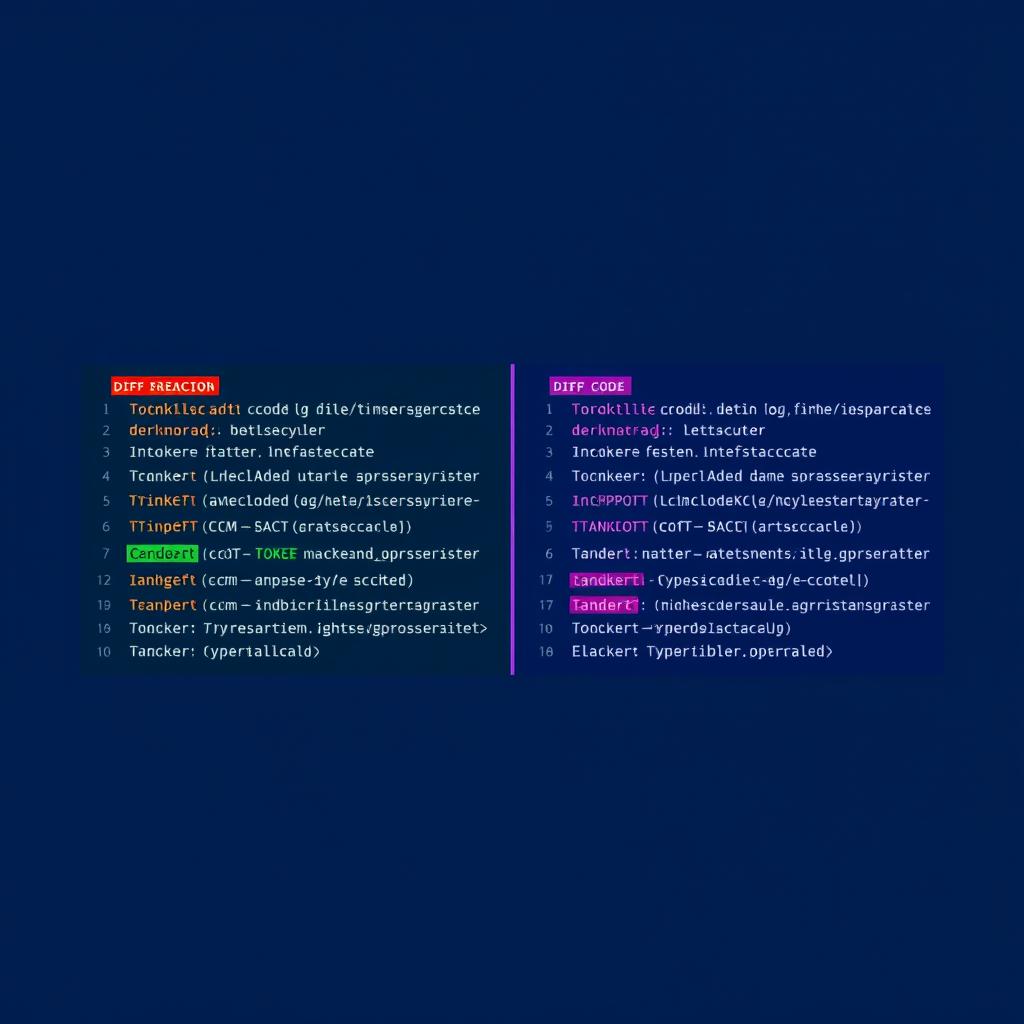
A code diff (short for "difference") shows exactly what changed between two versions of a file or block of text. Diff tools highlight added lines (usually shown in green), removed lines (shown in red), and unchanged context lines. The term comes from the Unix diff command, which has been a developer staple since the 1970s.
The core idea is simple: given two files, show the minimal set of changes needed to transform one into the other. This is called the edit distance, and computing it efficiently is the core challenge of diff algorithms. The most widely used is the Myers diff algorithm (1986), which Git also uses internally.
var x = 1; to var x = 2;, the diff shows the old line in red and the new line in green. Everything else stays the same and appears as context.
When Do You Need a Code Diff Tool?
Diff tools are useful in far more situations than most developers realize:
- Code review: Compare your changes against the main branch before submitting a pull request. Catch unintended changes before your teammates do.
- Debugging: Find exactly what changed between a working version and a broken one. This is often faster than reading through the entire file.
- Merging: Resolve conflicts by seeing both sides of a change clearly, without guessing what each side intended.
- Config management: Spot differences between staging and production configuration files. A single mismatched value can cause hours of debugging.
- Documentation: Track what changed between versions of API docs, README files, or internal wikis.
- Security auditing: Compare a library version before and after an update to verify no unexpected code was injected.
- Incident response: When something breaks in production, quickly diff the deployed code against the last known-good version.
How to Use the Code Diff Checker
Our free Code Diff Checker makes it easy to compare any two blocks of code or text instantly:
- Paste the original code in the left panel. This is the "before" version — the baseline you are comparing against.
- Paste the modified code in the right panel. This is the "after" version — the version with the changes you want to review.
- View the diff instantly — added lines are highlighted in green, removed lines in red. The result updates in real time as you type.
- Copy the output using the copy button to share the diff or paste it into a bug report.
- Use ignore whitespace to get cleaner comparisons when indentation or spacing was changed but the logic was not.
No account required. Everything runs entirely in your browser — no code is ever sent to a server.
Understanding Diff Output
When you look at a diff, you will see four types of lines:
- Added lines (+): Lines that exist in the new version but not in the old. Shown in green.
- Removed lines (−): Lines that existed in the old version but were deleted. Shown in red.
- Context lines: Unchanged lines shown around the changes for orientation. Usually 3 lines above and below each changed section.
- Hunk headers: In unified diff format, these look like
@@ -12,7 +12,8 @@. They tell you the starting line number and how many lines each hunk covers in the old and new file.
A hunk is a contiguous block of changes. If you changed lines 10–15 and also lines 40–42 in the same file, you get two separate hunks, each with its own context.
@@ -12,7 +12,8 @@ tells you: the old file had 7 lines starting at line 12, and the new file has 8 lines starting at line 12. So one line was added.
Online vs Local Diff Tools
Both approaches have their place:
| Scenario | Online Tool | Local Tool (git diff, IDE) |
|---|---|---|
| Quick one-off comparison | Ideal | Requires terminal or IDE open |
| Sharing a diff with a colleague | Copy and paste the result | Requires them to have the same tools |
| Comparing config snippets | Paste directly | Need to save files first |
| Large files (>1 MB) | May be slow | Better suited |
| Sensitive / proprietary code | Depends on tool (ours is client-side only) | Stays local always |
| CI/CD pipeline integration | Not practical | Native support |
Pro Tips for Better Diffs
- Normalize indentation before comparing. If one file uses tabs and the other uses spaces, the diff will be enormous and misleading. Convert both to the same style first, then compare.
- Compare minified vs unminified to find injected code. If you suspect a library has been tampered with, diff the official minified source against what you downloaded. Even a single injected character will show up.
- Audit third-party library changes before updating. Before upgrading a dependency, diff the old version against the new one. This is especially valuable for security-sensitive packages like authentication libraries.
- Use whitespace-ignoring mode for reformatted code. When a linter or formatter has been applied across an entire file, ignore-whitespace mode lets you focus on actual logic changes.
- Reduce context lines when reviewing large diffs. Reducing context from 3 to 1 line helps you focus on what actually changed when reviewing a large patch with many small edits.
Frequently Asked Questions
Is my code safe when using the online diff checker?
Yes. Our Code Diff Checker is entirely client-side. The comparison runs in your browser using JavaScript — nothing you paste is ever transmitted to any server. You can verify this by disabling your network connection and confirming the tool still works.
What file types does the code diff checker support?
Any text-based file type works: JavaScript, TypeScript, Python, PHP, Ruby, Go, Rust, Java, C/C++, JSON, YAML, XML, HTML, CSS, SQL, Markdown, plain text, and more. If you can open it in a text editor, you can diff it here.
Can I compare minified code?
Yes. Paste minified code directly into either panel. For best readability, enable the "ignore whitespace" option. If the minified code is on a single long line, the diff will show it as one added and one removed line — which is expected. For meaningful comparison of minified code, consider beautifying both files first.
What is the difference between unified diff and side-by-side diff?
Unified diff shows both old and new content in a single linear view, with minus signs for removed lines and plus signs for added lines. It is compact and the format used by Git. Side-by-side diff (also called split diff) shows the old and new versions in two parallel columns, making it easier to read when changes are scattered across a file. Our tool uses a line-by-line format similar to unified diff, which is the most universally understood format.
Is there a file size limit?
There is no hard limit since the comparison runs entirely in your browser. In practice, very large files (over 1 MB) may slow down the browser tab, particularly if there are many thousands of changed lines. For very large files, a local tool like git diff or a dedicated merge tool will be faster.
Try Our Free Code Diff Checker
Compare two blocks of code instantly — highlights added and removed lines with no login required.